
Step 1: Connect the PC to the WIFI/IP Camera
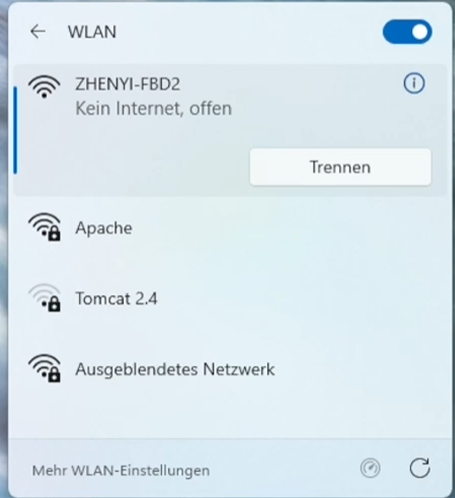
For the WIFI/IP camera to communicate with BulletHawkHM, the camera and PC must be on the same local network (subnet).
-
WIFI Camera: Turn on the camera. Connect the camera either to the network or directly to the PC.
-
Check: Make sure your PC is actively connected to the same router (via LAN or Wi-Fi) as the camera. In the event that the camera is connected directly to the PC, the IP address is the default gateway.
Step 2: Find out the Camera’s IP Address
To access the video stream, BulletHawkHM requires the network address (IP address) of the camera and, if known, the format. If only the IP address is provided, BulletHawkHM will search for the format, which may take some time.
📌 Important Tip: To prevent the router from assigning a different IP address to the camera after a restart, activate the option "Always assign this device the same IPv4 address" (or similar wording) in your router settings for this specific device.
Step 3: Enter the IP Address in BulletHawkHM
Once you know the IP address and the protocol of the camera, the connection can be set up in the software.
-
Start BulletHawkHM on your PC.
-
Navigate to SetupVideo (Camera Settings).
-
Select "Connect IP Camera" as the source type.
-
Enter the address in the required format. Usually, the standardized RTSP (Real-Time Streaming Protocol) is used here. The input format is generally:
rtsp://[USERNAME]:[PASSWORD]@[IP ADDRESS]:[PORT]/[STREAM PATH]-
Example 1:
rtsp://admin:This email address is being protected from spambots. You need JavaScript enabled to view it. :554/h264Preview_01_main -
Example 2:
192.168.1.1(here BulletHawkHM automatically searches for the format) (Note: You can find the exact stream path in your camera manufacturer's manual or the software specifications).
-
-
Click on "Connect" or "Apply".
-
Once the camera and format have been found, a message will appear stating that the camera has been successfully connected. Confirm this with OK and proceed with the remaining setup steps as usual.
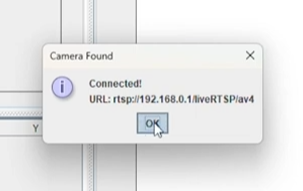
📌 Important Tip: If only the IP address was known at the beginning, you can note down the full URL after successfully connecting the camera to shorten the search time the next time you connect.
Video: Connecting WIFI/IP CAM
 Deutsch (Österreich)
  English (United Kingdom)